Documentation
The complete guide to WorldClockBar.
Getting started
Install WorldClockBar from the Microsoft Store. The Store handles installation and keeps the app updated automatically — there is no installer to run and no administrator rights are needed.
On first launch the bar docks to the top edge of your primary monitor with five starter cities: Chicago, London, Tokyo, Sydney, and Dubai. Your own local time and UTC (Zulu) time are always shown on the right side of the bar, next to the control buttons.

The app runs entirely offline. All map data ships inside the package, no account is required, and nothing you configure ever leaves your computer.
The bar
Adding and removing cities
Click the + button on the bar (or press Ctrl+Shift+F) and type a city name. Search covers 167,603 cities from the GeoNames database, ranked by population, and matches names, countries, and regions. Right-click a tile to remove its city, or manage the full list in Settings → Cities.
Docking and alignment
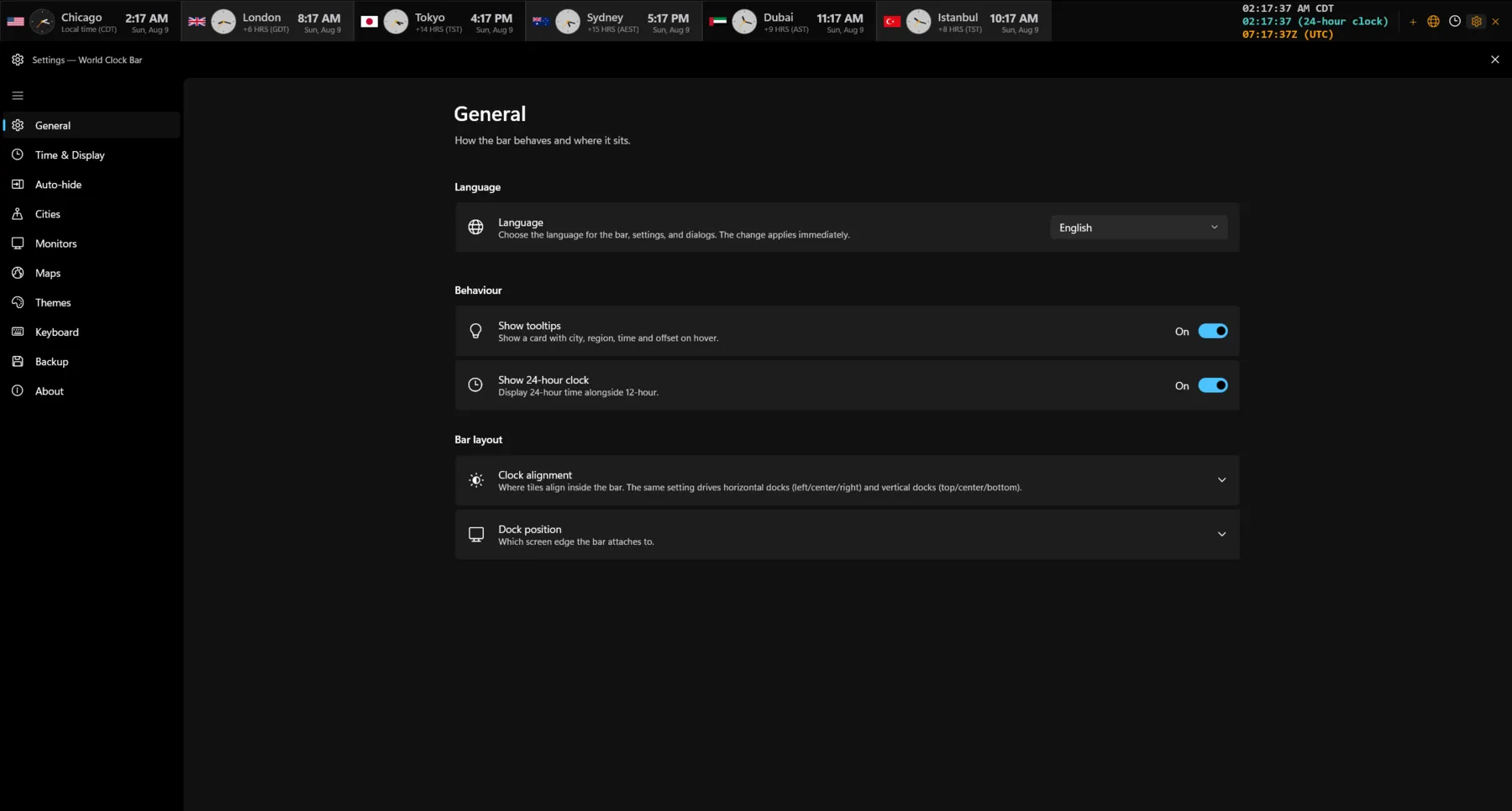
The bar docks to any screen edge — top, bottom, left, or right — as a native Windows AppBar, which means Windows reserves that strip of the screen and your maximized windows never overlap it. Change the edge in Settings → General → Bar layout, along with how tiles align inside the bar. When more cities are pinned than fit in one row, the bar wraps into up to four rows.
Auto-hide
With auto-hide on (Settings → Auto-hide, or Ctrl+Shift+H), the bar slides off-screen when not in use and returns when you move the pointer to that screen edge. The reveal delay is adjustable from immediate to five seconds, and hiding can be synchronized across the bars on all monitors.
Multiple monitors
Each display can run its own bar with its own city list (Settings → Monitors and Settings → Cities). Monitors are identified by their Windows device name, so your layout survives reboots and display-configuration changes. The global summon shortcuts (Ctrl+Shift+Alt+1…9) show or hide the bar on a specific monitor from inside any application.
Views
World map — Blue Marble
Click the globe button on the bar (or press Ctrl+Shift+E) to open the Earth window. The Blue Marble view renders NASA satellite imagery with a live day/night terminator, an optional color-coded timezone overlay, and a UTC-offset legend along the bottom. Hover any city marker for a card with its country, region, current time, and offset; the Night and Zones toggles switch the overlays.
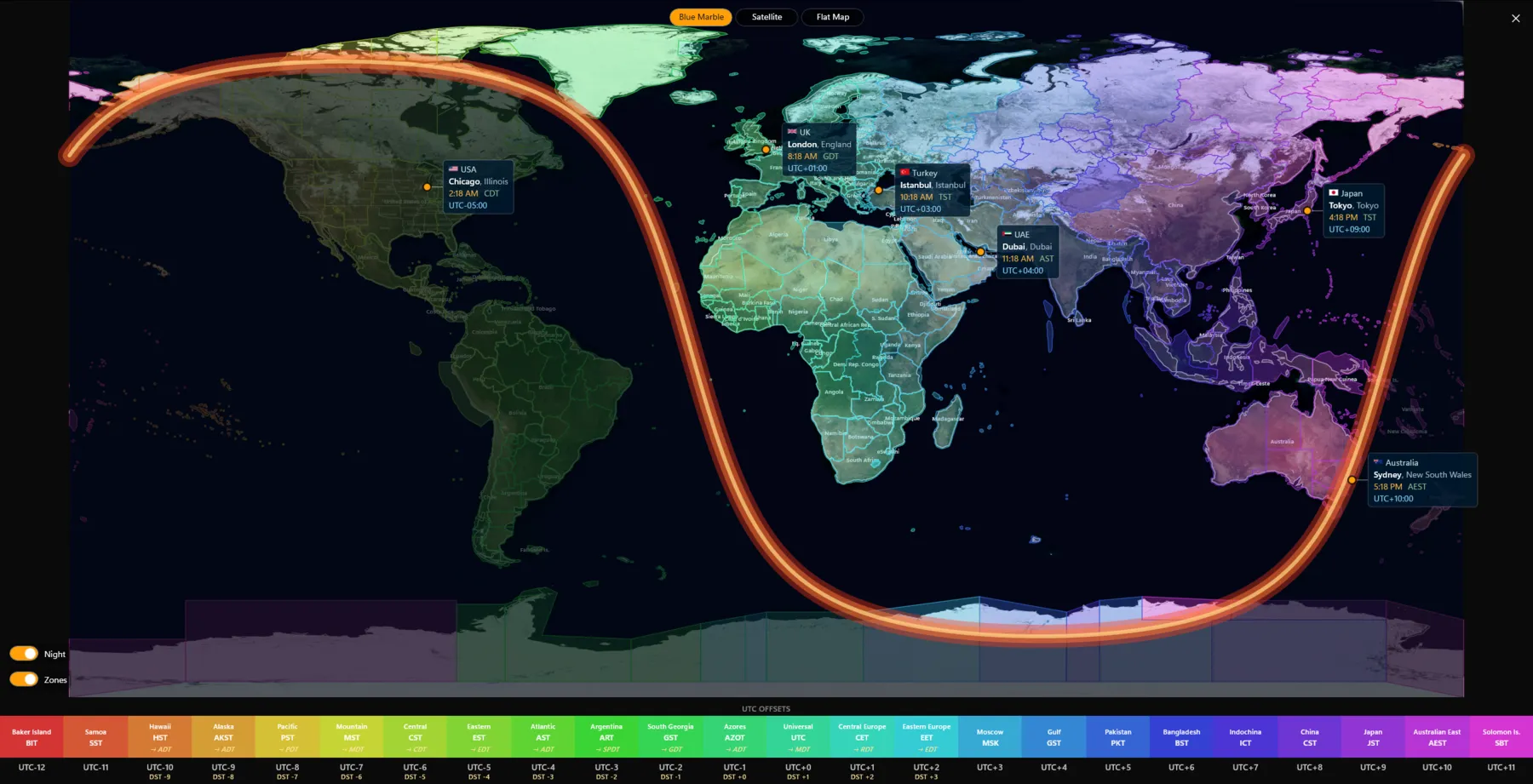
Satellite globe and flat map
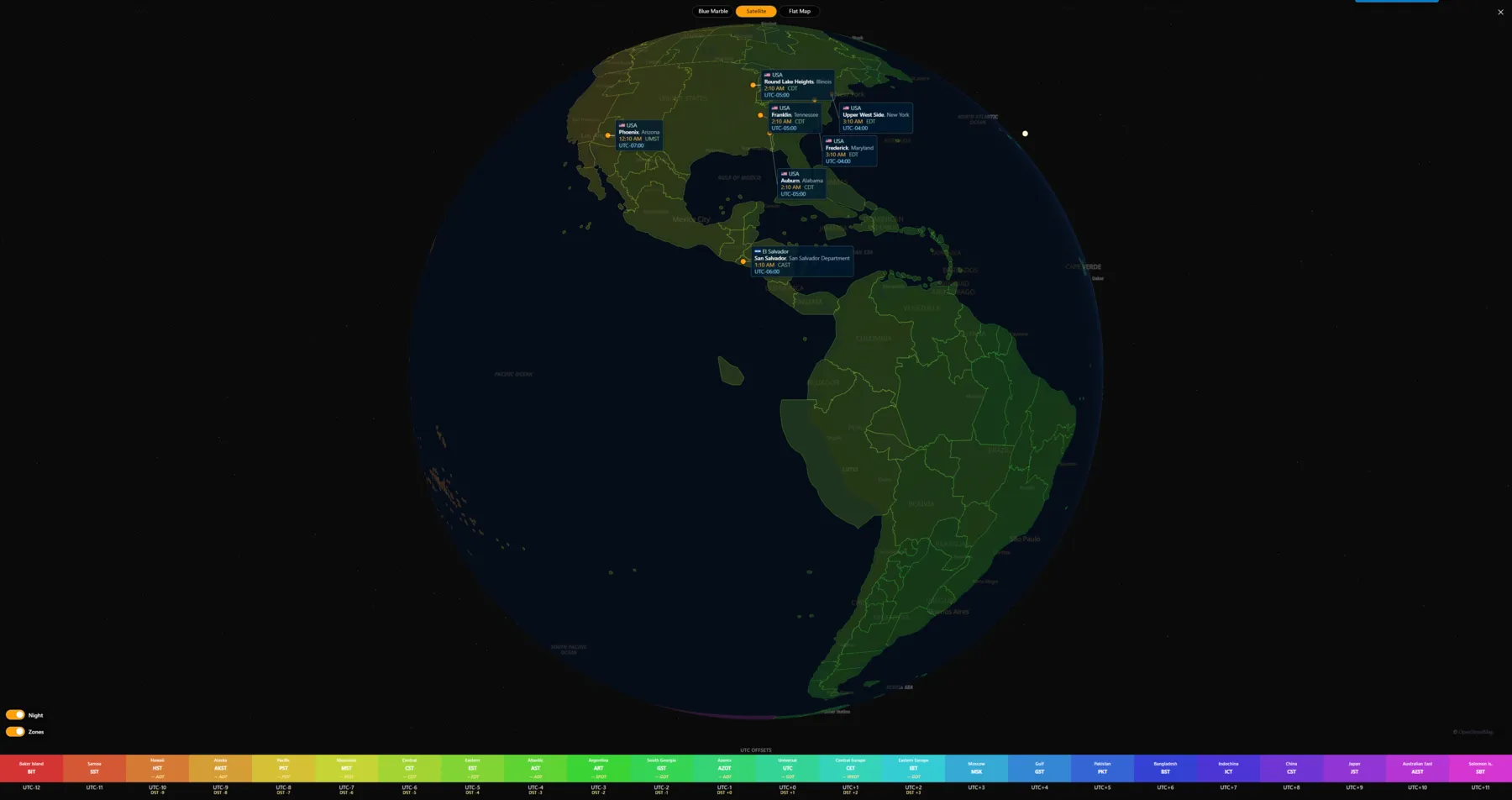
The style switcher at the top of the Earth window (or Ctrl+Shift+1/2/3) selects Blue Marble, the 3D Satellite globe, or the 2D Flat map. The globe is fully interactive — drag to rotate, scroll to zoom — with country borders, timezone shading, night-side darkness, and your city cards pinned in place. Map data is bundled OpenStreetMap-derived vector data (the attribution in the corner is a license requirement of that data); no tiles are ever downloaded.
The 24-hour compare grid
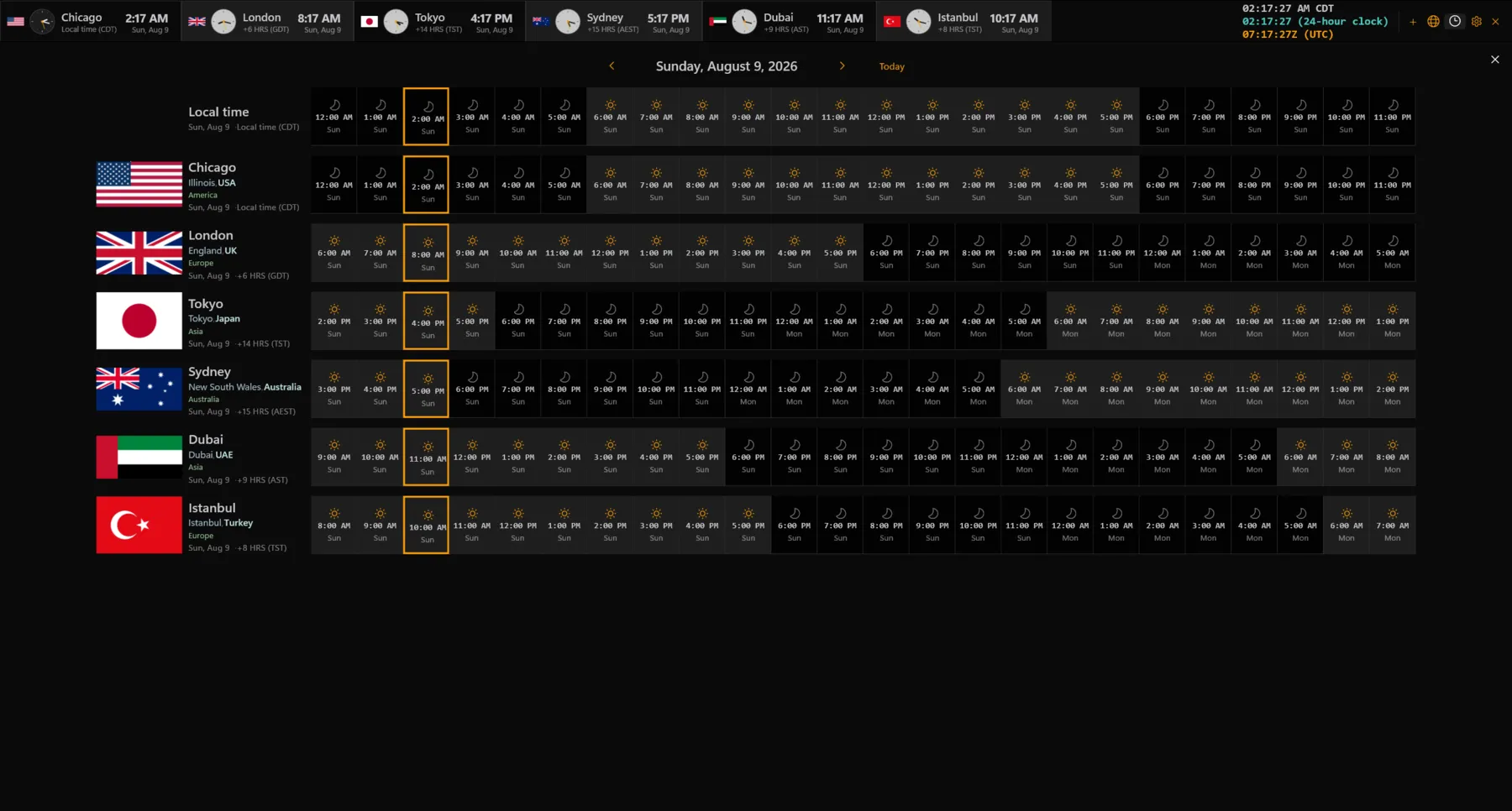
Click the grid button on the bar (or press Ctrl+Shift+C). Each row is one of your cities; each column is an hour of the selected day. Cells carry a sun or moon glyph, the local hour, and the day of the week — so when a city rolls past midnight into tomorrow, you see it immediately. The current hour is outlined in every row, day/night hours are shaded, and the arrows at the top step between dates for planning ahead.
Settings reference
Keyboard shortcuts
Window-scoped shortcuts work while WorldClockBar is the foreground app. The two summon shortcuts at the bottom are global and work from inside any application.
| Shortcut | Action | Notes |
|---|---|---|
| Ctrl+Shift+E | Toggle world map | Open or close the Earth window |
| Ctrl+Shift+C | Toggle compare panel | The 24-hour compare grid |
| Ctrl+Shift+H | Toggle auto-hide | Slide the bar off-screen |
| Ctrl+Shift+S | Cycle sort modes | |
| Ctrl+Shift+, | Open Settings | |
| Ctrl+Shift+F | Add a city | Opens the search flyout |
| Ctrl+Shift+R | Refresh clocks | |
| Ctrl+Shift+M | Cycle map style | Blue Marble → Satellite → Flat |
| Ctrl+Shift+Z | Toggle timezone overlay | Blue Marble only |
| Ctrl+Shift+N | Toggle night shadow | Blue Marble only |
| Ctrl+Shift+1 | Switch to Blue Marble | |
| Ctrl+Shift+2 | Switch to Satellite | |
| Ctrl+Shift+3 | Switch to Flat map | |
| Esc | Close all overlays | Hides bars and closes Earth / Compare |
| Ctrl+Shift+Alt+E or Ctrl+Shift+Alt+1 | Show / hide on monitor 1 | Global — works from any app |
| Ctrl+Shift+Alt+2…9 | Show / hide on monitor N | Global — works from any app |
Troubleshooting
The map or globe view is blank.
The Earth window renders through Microsoft Edge WebView2, which is pre-installed on Windows 11. On Windows 10, install the WebView2 Runtime from microsoft.com/edge/webview2, then reopen the Earth window.
The bar vanished after I unplugged a monitor.
Open Settings → Monitors and click Re-detect monitors. Bars assigned to a display that no longer exists move back to an active one.
A city shows the wrong time after a government changed its timezone rules.
Times come from the Windows timezone database. Run Windows Update (including "Receive updates for other Microsoft products") to get the latest timezone data.
Why does the map say "© OpenStreetMap"?
The bundled vector map data is derived from OpenStreetMap and its license requires that attribution. It is a label, not a network connection — the app never contacts OpenStreetMap.
Where are my settings stored?
In settings.json in the app’s local data folder. Use Settings → Backup to export everything to a file you control, and Restore to bring it back — including on a new PC.
How do I update the app?
Updates install automatically through the Microsoft Store. To check manually, open the Store app → Library → Get updates.